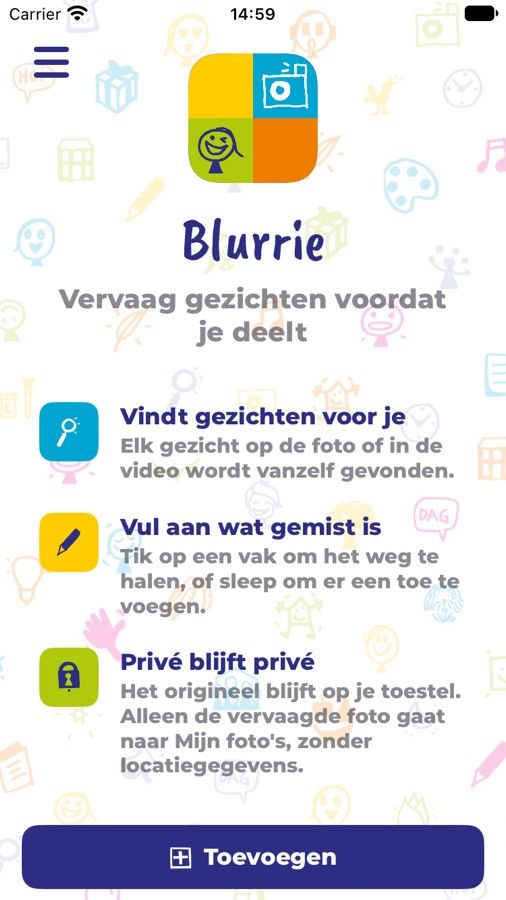
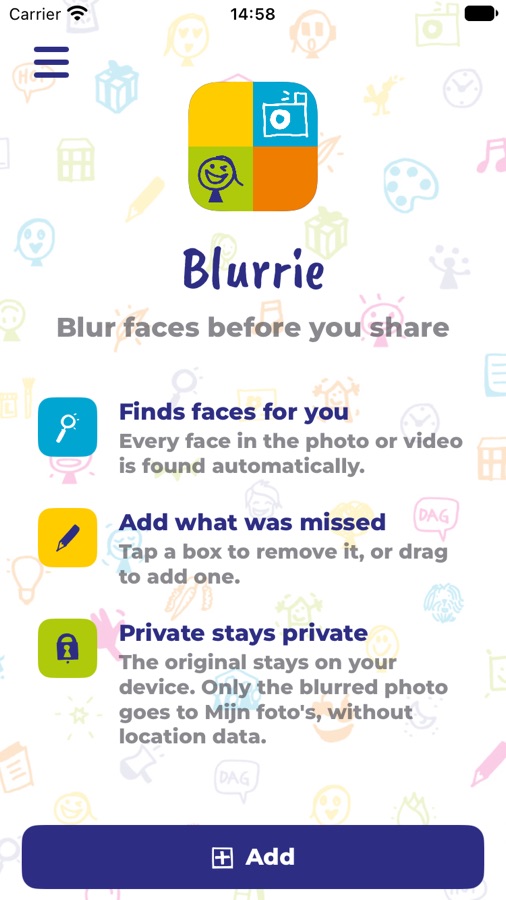
From class photo to safe to share
Five steps, and Blurrie does the first one for you.
Add a photo or video
Pick one from your library, take a photo, record a video, or drag a file into the window on a Mac.
Faces are found
Blurrie scans the picture in overlapping tiles, so even the small faces at the back of a group photo get a box.
Fix what was missed
Tap a box to remove it, drag to add one. Zoom in for tiny faces, and undo any change.
Blur or smiley
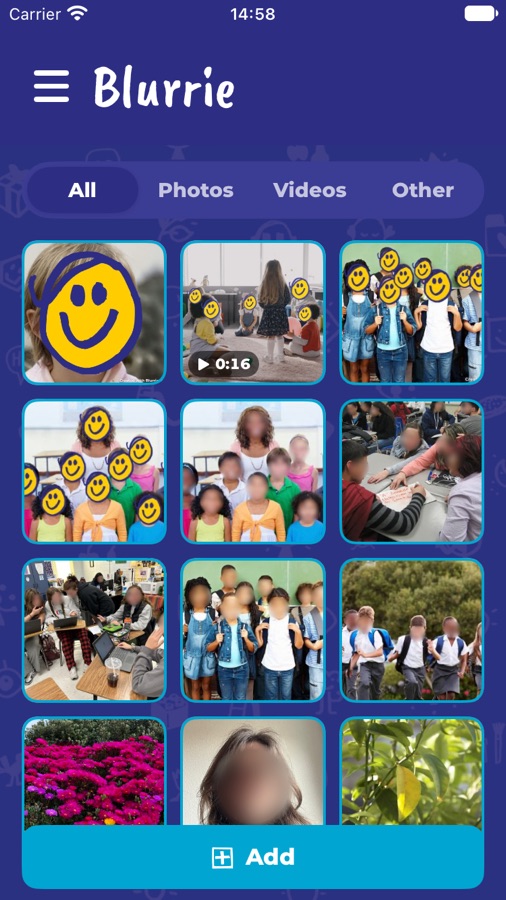
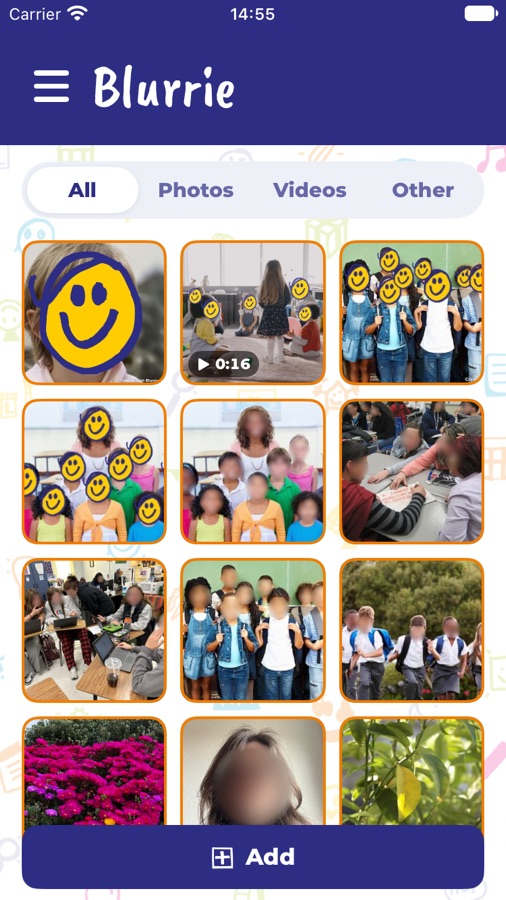
Choose a blur with a strength from 1 to 5, or a hand-drawn yellow smiley that covers the face completely.
Save and share
The covered copy goes to Mijn foto's or your own Photos, with a small Created with Blurrie ★ in the corner.
Two ways to cover a face
Some photos want a soft blur. For others a smiley is friendlier, and nothing of the face shows through. You choose per photo, and the same choice works for videos.
Vervagen · Blur
Five strengths, from a light haze to unrecognisable.
Smiley
Covers the whole face, so there's no strength to set. In videos it's saved in standard colour, so the yellow stays yellow.
Faces stay covered while people move
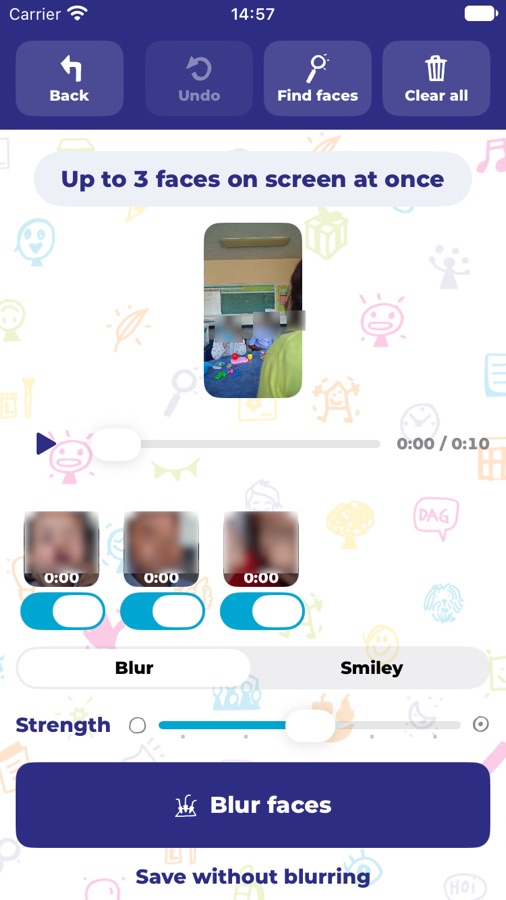
Blurrie follows every face through the whole video and gives each person a track you can check before anything is exported.
- One track per person. Tracks that belong to the same child are joined by comparing faces, and you can join pieces yourself with Voeg samen.
- Steady when the camera swings. Faces stay covered as they swing in or out of the picture, and small or fast faces aren't left to the tracker alone.
- Edit any track. Switch one off, move or resize it, or shorten it. Draw a box by hand and Blurrie follows it through the video.
- Export, then share. Play the result with the same scrubber, save it to Mijn foto's, or share it straight from the gallery.
Works with MijnKleutergroep and MijnPeutergroep
Log in to a group's gallery from the side menu and Blurrie shows its photos and videos next to your own. Open one, cover the faces, and upload the covered copy back to the group.
- The original is never changed. Blurrie edits a copy and saves what it makes as a new file.
- Each gallery has its own login. Logging out of Blurrie also closes the galleries, so nobody after you sees the children's photos.
- Clear limits. When a video is too large to upload, Blurrie shows its size next to the 100 MB limit instead of failing quietly.